Configuration
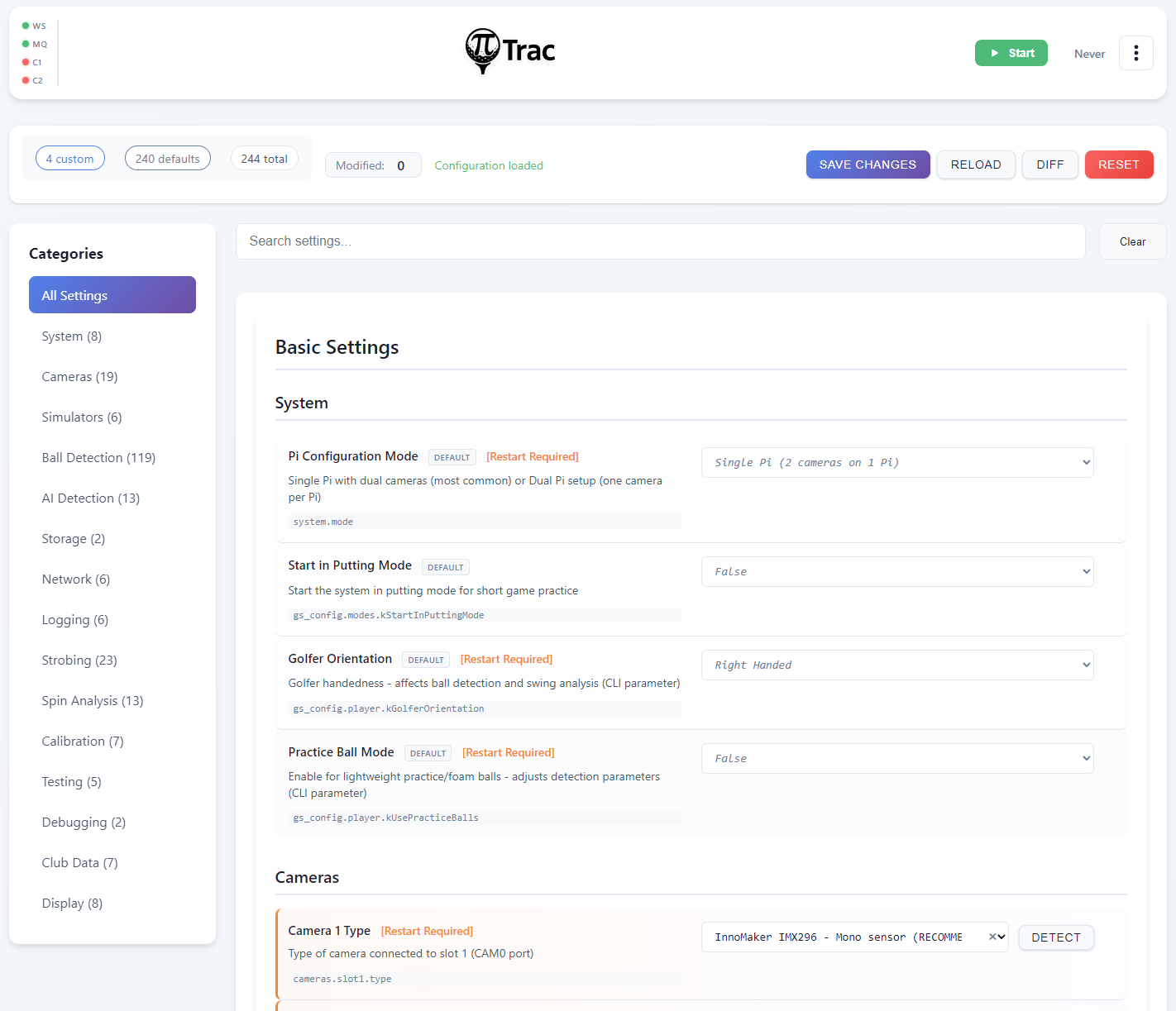
The Configuration page at /config is the central settings editor. No more editing 1000+ line JSON files.
First-Time Setup
When you first open Configuration, there are a few critical settings you need to set before anything will work.
Camera Hardware
Camera 1 Type and Camera 2 Type are the most important settings. PiTrac needs to know what cameras you're using.
- Click "Auto Detect" and PiTrac will try to identify your cameras.
- If that doesn't work (or picks the wrong ones), manually select from the dropdown:
- InnoMaker CAM-MIPI327RAW, recommended camera
- Pi Global Shutter Camera, also supported
- Other options for older hardware
Lens Choice. Tell PiTrac what lenses you have:
- 6mm M12, standard wide-angle lens (most common)
- 4mm M12, wider field of view
- 8mm M12, narrower field of view
After changing camera or lens settings, stop and restart PiTrac for the changes to take effect.
Golfer Orientation
Right-Handed (default), for right-handed golfers.
Left-Handed, for left-handed golfers (experimental, may need tweaking).
The Interface
Status bar (top):
- Modified counter shows how many settings have unsaved changes.
- Save Changes saves all modified settings (disabled when nothing has changed).
- Reload reloads configuration from disk.
- Diff shows differences between your settings and defaults.
- Reset resets all user settings to defaults (calibration data is preserved).
Category sidebar (left):
- Lists all setting categories with counts (e.g., "Cameras (42)").
- Includes an "All Settings" option at the top.
- Categories are defined in
configurations.jsonand include: Cameras, Simulators, Ball Detection, AI Detection, Storage, Network, Logging, Strobing, Spin Analysis, Calibration, System, Testing, Debugging, Club Data, Display.
Search bar (top of settings panel):
- Type to filter settings by name. Much faster than clicking through categories.
Settings editor (main panel):
When viewing "All Settings" or a single category, settings are organized into Basic and Advanced sections. Each setting shows:
- Display name and description (from metadata)
- Current value with appropriate input control (text, number, boolean toggle, dropdown)
DEFAULTbadge if using the default value[Restart Required]indicator if changing the setting requires a PiTrac restart- Configuration key path (e.g.,
gs_config.cameras.kCamera1Gain) - Clear button (x) to reset individual settings to default
Common Settings You'll Actually Change
Camera Gains
Path: Cameras > kCamera1Gain / kCamera2Gain
Range: 0.5 to 16.0
Default: 6.0
Too dark? Increase gain (try 8-12). Too bright or noisy? Decrease gain (try 3-6).
Better lighting is always better than cranking gain. Higher gain means more noise.
Simulator Connection
Path: Simulators > E6/GSPro sections
You'll need the IP address of the computer running your simulator software:
- E6 Connect Address, IP of PC running E6 (e.g., 192.168.1.100)
- E6 Connect Port, usually 2483
- GSPro Host Address, IP of PC running GSPro
- GSPro Port, usually 921
Use ifconfig (Mac/Linux) or ipconfig (Windows) on your simulator PC to find its IP.
Tip
See the Simulator Integration page for detailed setup instructions for each simulator.
Saving Changes
- Edit whatever settings you need.
- Click "Save Changes" at the top right.
- If a setting requires restart, you'll see a warning.
- Stop and start PiTrac to apply restart-required changes.
Most settings apply immediately. Camera hardware changes and a few others need a restart.
Advanced Features
Show Diff shows what you've changed from the default values. Useful before resetting everything.
Import/Export. The configuration API supports exporting (GET /api/config/export) and importing (POST /api/config/import) your settings. Export includes both user settings and calibration data.
Reset to Defaults puts everything back to factory settings. Your calibration data is safe though. It's stored separately and won't be lost.
What You Don't Need to Touch
PiTrac has hundreds of settings, but you only need to worry about maybe 30 of them. The rest are for fine-tuning ball detection algorithms, adjusting strobe timing, debugging, testing, etc.
Stick to the Basic category unless something's not working and you're troubleshooting. The defaults are there for a reason.
Configuration Files (If You're Curious)
PiTrac uses a three-tier configuration system:
- Defaults: built into
/usr/lib/pitrac/web-server/configurations.json(settings with metadata) - Calibration data: auto-generated results in
~/.pitrac/config/calibration_data.json - Your overrides: manual changes in
~/.pitrac/config/user_settings.json
When you save changes through the web UI:
- Your overrides go to
user_settings.json(sparse file, only what you changed). - Calibration results go to
calibration_data.json(preserved across resets). - System generates
generated_golf_sim_config.jsonby merging all three layers.
The generated_golf_sim_config.json file is what the pitrac_lm binary actually reads at runtime.
The layers merge in priority order: your overrides win over calibration which wins over defaults.
You can edit the JSON files directly if you want, but the web UI is easier and validates your input.